
Contents
So you are inside the Link Builders Sheet within the Main Link Sheet
Using Pitchbox
You now need to open up Pitchbox.
Once inside Pitchbox you should be able to click the link inside the pitchbox URL field.
However, if there is no URL inside the Pitchbox URL Cell, you have to copy the email address and put it into the Search Opportunities or Contact bar at the top right-hand side of pitchbox. Screenshot below:

If you are still struggling to find the contact for the website, then search for the domain name, and it should come up with a list of opportunities, for example;
If we were looking at https://www.raisingedmonton.com/steps-to-take-if-you-have-been-harassed-in-the-workplace/
Then the domain name, in this instance, would be raisingedmonton.com.
Example below:
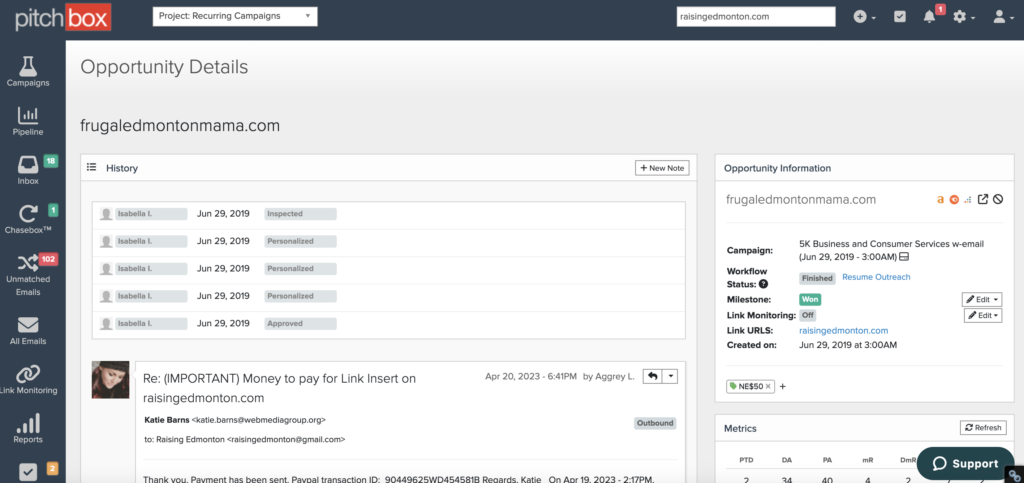
Make sure the previous correspondance with web master aligns the domain you are trying to place a link on & check we aren’t waiting on correspondance for a previous link as if we are then make a note in the main link sheet and check on it the next day to make sure its done.
Important
Messaging the Webmaster
Click the Reply Arrow seen below:

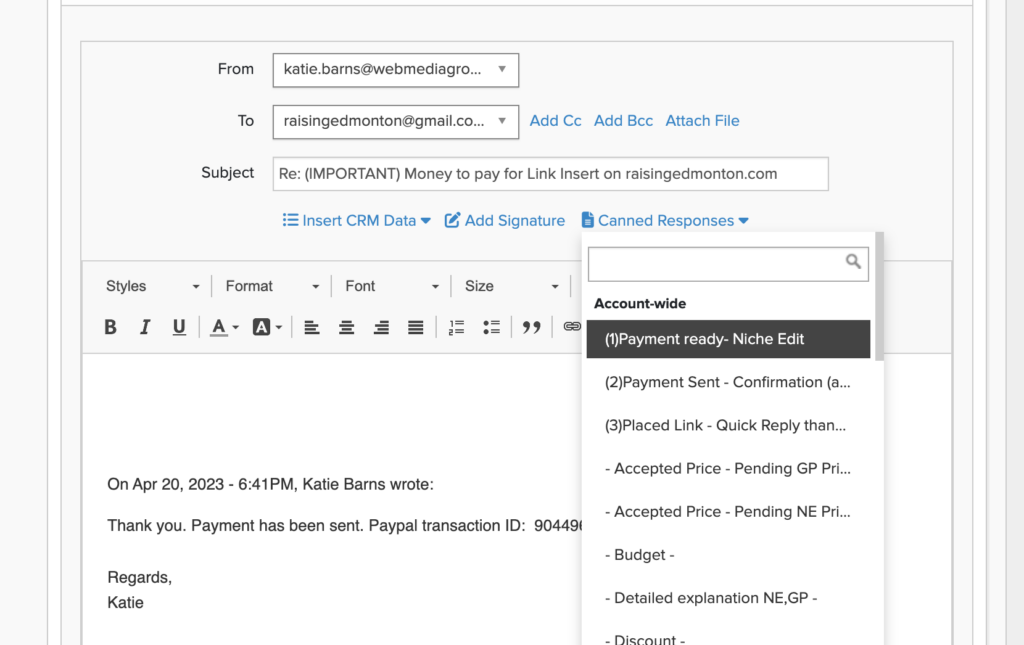
Edit The Subject to say Re: (IMPORTANT) Money to pay for Link Insert on raisingedmonton.com
You need to ensure you edit the subject and update the relative domain with the proposed URL in the spreadsheet.
Click Canned Response – 1) Payment Ready – Niche Edit
You then need to replace the two dollar signs ($$) within the section ‘send $$ to you’ with the cost of the link shown in the order sheet.
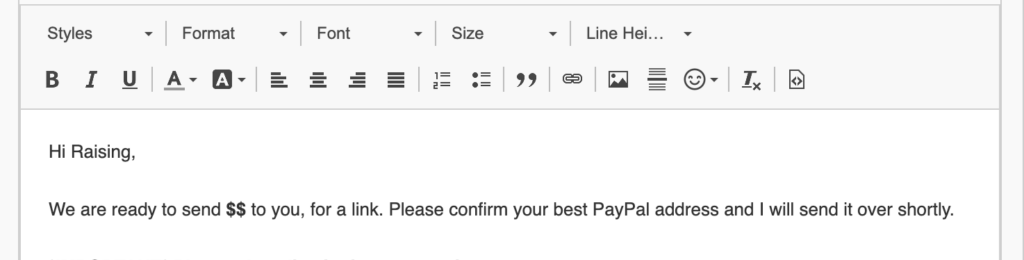
It should fill in a pre-written templated response that we now edit to match the relative order details.
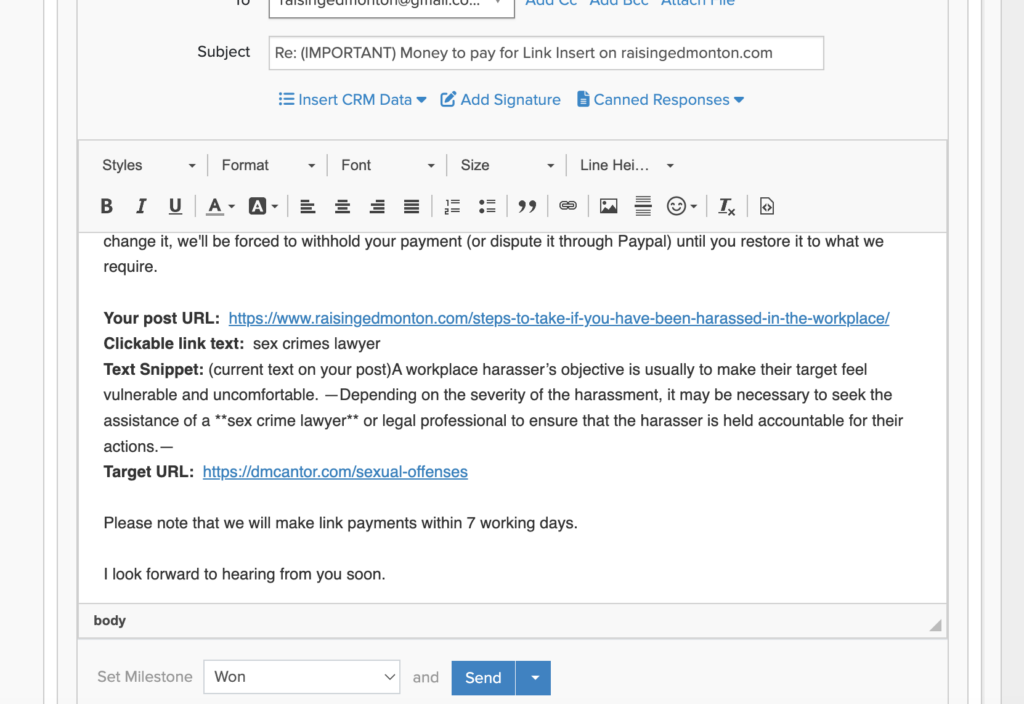
Now the following information should be changed:
Your Post URL: This should correspond to the Proposed URL in the order sheet.
Clickable Link Text : This should correspond to the anchor text in the order sheet.
Text Snippet : This is the proposed text snippet in the order sheet.
Target URL : This is the clients URL.
Make sure the links to the relative URLs go to the correct URLs and not the old examples.
Important
Once you are happy and have double-checked that all of the information you have replaced within the template is the same as the order sheet, then you are good to send this to the webmaster.
Updating The Spreadsheet After Sending a Message
Once you have pressed send, you now need to grab the pitchbox URL and replace it with the one in the sheet.

Then update the Pitchbox URL here:

Update the contact date with the date you’ve sent the link.
Then go to notes, and you need to write; Link sent follow up: DATE (which will be two days after you have sent the link).
The row needs to be changed to the pink color seen below.

Continue the steps above until you have completed sending the links out in this order.
Once you have sent the links out, you are responsible for keeping on top of the links and checking to see if the webmasters have responded, this should be done on a daily basis.
Important
If the webmaster has not responded
If there has been no response from the webmaster for 2 days after sending out the link, then please carry out a follow-up email;
- Click the pitchbox URL.
- Click Reply Arrow
- Inside the Canned Response, select “No Reply After 1st Email”
- Double check it has pulled in the name of the webmaster and hit send.
- Make a note in the sheet saying Done 1st Follow-Up With The DATE of the follow up. Example: done follow up 04/23/2023
If they still have not responded in another 2 days.
- Click the pitchbox URL.
- Click Reply Arrow
- Inside the Canned Response, select “No Reply After 2nd Email”
- Double check it has pulled in the name of the webmaster and hit send.
- Make a note in the sheet saying Done 2nd Follow-Up With The DATE of the follow up. Example: done 2nd follow up 04/25/2023
If they still do not respond to you in the next two days, we need to highlight the link in red and put a note saying, “No response from webmaster.”

The account manager should replace this with another link in the sheet, and then they will highlight it in Yellow indicating it is now ready to send out and the process will start again from the top.
If the link is live
If you check the pitchbox URL and the webmaster has responded indicating the link is live. We need to check it is live.
- Click on the proposed URL.
- Find the anchor text that you sent to the webmaster within the article.
- Check to make sure the anchor text corresponds to the Client URL.
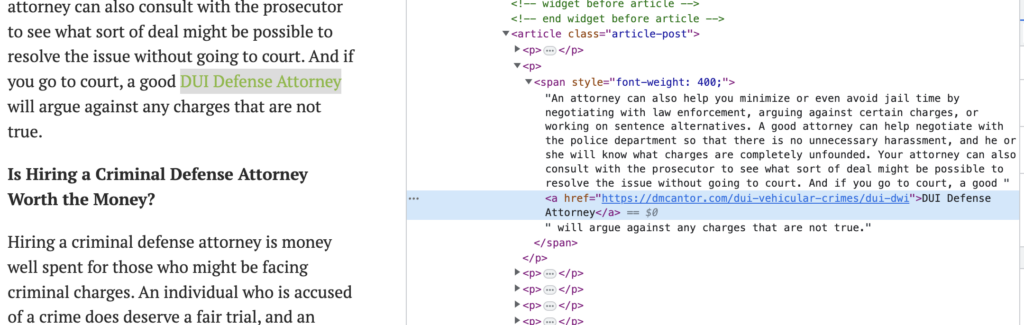
- Make sure it is a DoFollow Link (Right click inspect the link and make sure it does not mention rel=nofollow).
- If the link is nofollow OR requires any changes i.e. the anchor text does not match or CLIENT URL does not match OR the text snippet is different, then the webmaster needs to be informed that it is wrong and needs changed.
If everything with the link is correct then:
- You can mark it in the ORDER notes as “live waiting for payment”
- Update the Paypal Email or The Invoice Link
- Change the “link live date” to the date the webmaster responded saying it was live
- Then open up the pitchbox link, and reply to the webmaster with the last Canned Response, ‘Link Live Waiting for Payment’.
